
Cloud productivity suites like Microsoft 365 and Google Workspace have made it easier than ever to spin up a business. In a few clicks, you have email, file storage, calendars, video meetings, and collaboration tools — all without buying a single server.
But here's the catch: the default configurations are often set for convenience, not security. Leaving them as-is can expose your organization to data breaches, ransomware, unauthorized access, and compliance violations. In many cases, the cloud doesn't remove security responsibility — it shifts it to you.
This post covers the most critical security configurations every organization should implement. If you're using M365 or Google Workspace and haven't addressed these, you're operating with unnecessary risk.
---
Default Configurations Are Dangerous
When you first set up M365 or Google Workspace, the defaults typically include:
- Security defaults or basic protection policies (better than nothing, but not sufficient)
- No conditional access restrictions
- Broad sharing permissions
- Minimal audit logging
- No data loss prevention (DLP) rules
These defaults are designed to get you up and running quickly. They are not designed to protect a business from determined attackers.
---
1. Enable and Enforce Multi-Factor Authentication (MFA)
This is the single most impactful security control you can deploy. MFA blocks over 99.9% of account compromise attacks. It's a foundational element of any cybersecurity program.
In Microsoft 365: - Use Conditional Access policies (not legacy per-user MFA) to require MFA for all users - Create separate policies for: - All users (require MFA for all cloud apps) - Administrators (require MFA with stronger methods, like authenticator app) - High-risk sign-ins (block or require re-authentication)
In Google Workspace: - Go to Security C 2-Step Verification and enforce it for all users - Set a grace period for enrollment, then enforce - Consider requiring security keys or Google Authenticator for admin accounts
> Key point: Do not rely on "security defaults." Create targeted Conditional Access or context-aware access policies that match your risk profile.
---
2. Implement Conditional Access (Managed Workstations)
MFA alone is not enough. Conditional Access allows you to enforce where and how users can access your cloud resources.
For Microsoft 365: - Require compliant or hybrid-joined devices for access to sensitive apps - Block access from non-compliant devices (no MFA, no antivirus, no encryption, out of date) - Require trusted network locations for admin access - Block access from anonymous IP addresses, Tor, and untrusted countries - Set session controls (sign-in frequency, persistent browser session limits)
For Google Workspace: - Implement context-aware access policies (Workspace Enterprise required for full capabilities) - Restrict access based on device status, location, and IP range - Require company-owned devices for admin access
Real-world example: An attacker has a user's password but does not have their managed laptop. Conditional Access blocks the login attempt from an unknown device — even with correct credentials.
---
3. Configure Data Loss Prevention (DLP)
DLP policies prevent sensitive data from being accidentally or intentionally shared outside your organization.
In Microsoft 365 (Purview): - Identify sensitive data types: credit card numbers, SSNs, bank account numbers, health information (HIPAA), personal data (GDPR) - Create DLP policies that: - Block sharing of sensitive data via email, Teams, SharePoint, and OneDrive - Notify users when they try to share sensitive content - Allow override with business justification (logged for audit) - Use policy tips to educate users in real-time (e.g., "This document contains sensitive data. Consider removing it before sharing externally.")
In Google Workspace: - Enable DLP rules for Gmail, Drive, and Chat - Create content detection rules for common sensitive data patterns - Set actions: warn, block, or quarantine - Use the investigation tool to review DLP matches
> Common gap: Many organizations enable DLP but do not test it. Run test scenarios to verify that policies actually fire when expected.
---
4. Deploy and Enforce Intune (Mobile Device Management / Mobile Application Management)
If you are using Microsoft 365, you should be using Microsoft Intune. It gives you control over every device that accesses company data.
Essential Intune policies: - Device compliance policies: require encryption, minimum OS version, antivirus/EDR, firewall enabled, device password/PIN - Conditional Access integration: only compliant devices can access Exchange, SharePoint, Teams - App protection policies (MAM): protect data even on unmanaged personal devices — prevent copy/paste into personal apps, require PIN for work apps, wipe work data without wiping the personal device - Autopilot: provision new Windows devices with zero-touch deployment - Configuration profiles: push Wi-Fi, VPN, certificate profiles to all managed devices
Google Workspace equivalent: - Use Google Endpoint Management (built-in for Workspace Enterprise) - Enforce device policies via the Admin console - Set up Android Enterprise and Apple device management
---
5. Audit Your Sharing Permissions and External Access
Cloud collaboration is powerful, but overly broad sharing is one of the most common data exposure risks.
Action items: - Review all external sharing links in SharePoint/OneDrive/Google Drive - Set default sharing to "specific people" rather than "anyone with the link" - Set expiration dates on external sharing links - Regularly review guest user accounts in Teams, SharePoint, and Google Workspace - In M365: use Microsoft Purview to audit external sharing activity - In Google Workspace: use the Drive audit log to review file access patterns
---
6. Enable Comprehensive Audit Logging
When something goes wrong — or when an auditor asks for evidence — your logs are your lifeline.
In Microsoft 365: - Enable unified audit log (now on by default for most tenants, but verify) - Retain logs for at least 90 days (preferably 180+ for compliance) - Enable Mailbox auditing for all users - Review audit logs weekly for suspicious activity (or use a SIEM)
In Google Workspace: - Enable Google Workspace audit logs via the Admin console - Review Drive, Gmail, and Admin activity logs regularly - Use Vault for eDiscovery and retention
---
7. Create a Security Baseline and Review It Monthly
Security configurations drift. New features are added, policies become stale, and administrators change. A written security baseline — reviewed monthly — ensures you stay on top of it.
Your baseline should document: - MFA policy settings - Conditional Access policies (for M365) or context-aware access rules (for Google) - Intune / MDM compliance policies - DLP rules in effect - External sharing restrictions - Backup and retention policies - Admin account controls and break-glass procedures
---
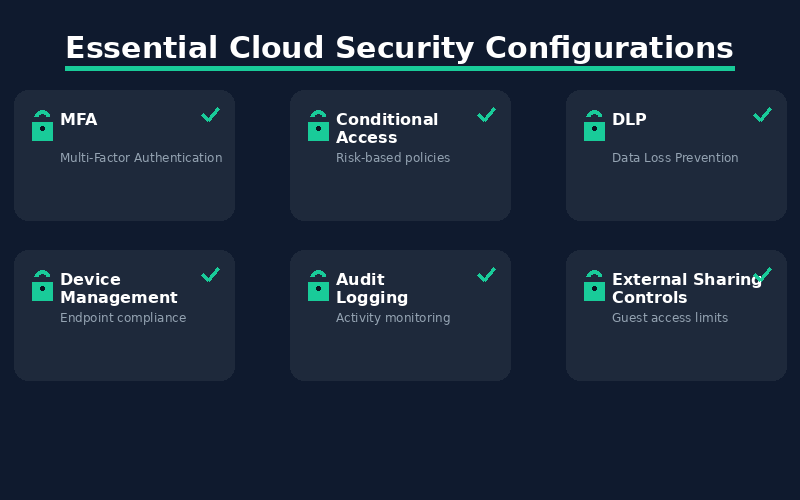
Essential Cloud Security Configurations
The cloud makes it easy to get started — but security is not automatic. Every one of the configurations above is achievable with the licenses most organizations already have. The gap isn't budget or capability — it's awareness and execution.
Whether you need help locking down your Microsoft 365 environment, setting up cloud infrastructure, or ensuring ongoing compliance, we can help.
Not sure if your M365 or Google Workspace tenant is configured securely? Contact Virtue Technology Solutions for a no-obligation discussion.